Sunday, March 20, 2022

D365 F&O - Package deployment on sandbox and production environments

This post covers package deployment for cloud environments.


To do the D365 F&O package deployment (Deploying customizations across D365 F&O environments), create the deployable package and deploy on sandbox and production environments. Microsoft provides Sandbox as free environment, it is a staging environment. Before we move the changes to production, we need to deploy on sandbox first, once the package is deployed on sandbox then only we can deploy on production.


Microsoft is taking responsibility to do the deployment for the sandbox and production environments. That means we can upload the package and push to start the deployment process, Microsoft will take care the deployment steps like compilation, database synchronization, report deployment, etc.


Deployment steps are very simple, upload the package on LCS project asset library, apply updates on Sandbox, mark the deployed package as release candidate and schedule deployment on production. We have the option to rollback our changes, also we have the option to create support ticket with Microsoft (LCS project>Work items>Support issues>Submitted to Microsoft) for deployment related issue, make sure you enabled the notifications on LCS user settings to get the deployment related email updates.


Navigate to the LCS project


Asset library


Software deployable package and upload our package


Navigate to Sandbox environment on the project overview page,


Select "Apply updates" on the sandbox environment details section


Select our uploaded package


The deployment process is started and we can see the progress on the sandbox environment details section


Once the deployment is done on the sandbox, make the deployed package as release candidate for moving to production.
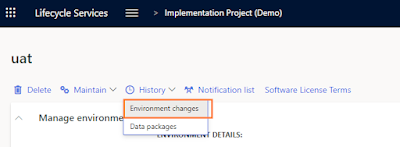


To initiate package deployment on production, navigate to production environment details page and select Maintain>Update Environment, and then select our package and mention the production downtime.


Note: These all are manual steps, but till sandbox package deployment can be achieved through DevOps continuous deployment (Automated deployment) using Azure DevOps release pipeline.

Sunday, March 13, 2022

D365 F&O - Create deployable package

In AX 2012, we use xpo, model and model store for deployment. Of course, we should not use xpo for deployment, it will create some issue in future when we follow the model deployment or model store deployment, we might face some other issues also.

For production deployment, we need to use model store deployment.

In D365 F&O, There is no xpo or model store, only models are available. Packages are used to do the deployment, package can have multiple models.


How to create packages?

Deployable package can be created from Visual Studio. Before we create a deployable package, we should compile the models. Compilation is mandatory. For example, if you modify some objects and not compiled then it may create some problem on the production, because the files are not updated. In the time of compilation, the system create some binary files, dll files on the system these files are used in the time of deployable package creation.


Dynamics 365 > Build models


Select the model and click build button


Compilation status will appear

Dynamics 365>Deploy>Create Deployment Packages...

Select the path where the deployable package should be placed

Select the model and click "Create" and we will get "Package created." message once its done.


Package file is created

The package files contains all binary files

If you look into the deployable package, all files are binary files. Only the binary files are moved to production, no codes. I am not sure that we will get the code base if our development machine got corrupted and not using version control, but definitely Microsoft can help us.

But, we should always use version control.

Note: This post is to explain about the deployable package, but it is not the best practice to create the deployable package, because

1. When you work with more than two developers then it won't work properly, you need to take latest version always

2. If you modified some objects like CustTable table but not yet completed and it is in progress, in this state, modified objects/not checked in objects also will move to production

So, the best practice to create the deployable package is build automation process. I will try to create another post for how to create build automation process.

For more information about the deployable package creation, please refer here

Thursday, March 10, 2022

Microsoft.Dynamics.Ax.Xpp.ErrorException: 'Argument to method setFieldValue out of range.'

Just a quick post.


Microsoft.Dynamics.Ax.Xpp.ErrorException: 'Argument to method setFieldValue out of range.'


We may face this error in the time of SSRS report development. For my case, some new fields are added on the RDP temporary table, but I forgot to add the DB sync on the time of build. So, I got this error and checked the table design on the DB and confirmed that new fields are not created on the table.


After I did the DB sync, the fields are not get created, so I have added one temporary field and synced and removed the temporary field and synced. It worked.

Wednesday, August 18, 2021

Move new code changes after D365 FinOps upgrade project start

If you are upgrading from AX 2012/AX 2009 to D365 FinOps, you need to do the code freeze before starting the code upgrade step. But we can’t avoid the bugs and high priority changes, in these scenarios, we do the code changes and later we need to move those changes to D365 FinOps. Unfortunately, we don’t have any tool to import XPO file in D365 FinOps.


How the upgrade process works and why we need code freeze?

The upgrade team take the model store and business database backup and import the model store on LCS and LCS upgrade tool converts the AX 2012 model store to D365 FinOps codebase and some code conflict issue will appear based on our customization, so the upgrade team need to fix those issues. So, our new AX 2012 system code changes are detached with D365 FinOps codebase, in other words, there is no link between our AX 2012 system and D365 FinOps. It is very high level, refer here for more information.

Once the upgrade process is done and got the development environment, we need to move our code changes.


Consider the followings

1. Which bugs we fixed

2. Which change request we worked

3. What are objects are modified/created for the specific bug/change request

4. What change we done on the objects for the specific bug/change request


It is very complicated process, if you don’t have project management system. In this case, we need to capture every change on Excel or somewhere and need to keep xpo before change and after change.


It is very simple, if you are already using DevOps for both project management and source control. Before upgrade start, move current sprint’s pending changes to production and make a note that from which sprint we need to move our new changes. That’s it.


Whenever we do the code check in, we need to select the specific work item, so we can easily track what are the changesets are involved for the specific DevOps work item.


If you did lot of customization after upgrade,

1. We can export model store and import on LCS and follow the same upgrade process and move your changes, but it is very complicated process and we need to invest lot of time.


2. The second option is manual code move, 

First you can move data dictionary related changes to D365 FinOps, so the upgrade team no need to wait for you to do the latest production data upgrade. Slowly we can move our classes or reports related changes.

We can’t easily compare the report design related changes between two versions. So, better open the report on VS in AX 2012 server and copy the rdc file to D365 FinOps machine and open in VS, restore the dataset and copy paste the entire design elements.


For more information related to AX 2012 version control, please refer here


Monday, August 16, 2021

Get free access to D365 FinOps development environment

You are interested to learn and start the development practice in D365 FinOps, but you don’t have development environment then this post is for you.


If you are working in the D365 partner company and you have access for LCS, then you can download D365 VM from LCS shared library, otherwise you can use Microsoft’s free development environment, only browser and Microsoft account are required 😊


Yes. Microsoft learning portal is giving free access to D365 FinOps. We can learn the D365 products through Microsoft learning portal. The portal having more modules and learning paths Some courses having lab section, it will help us to do the development practices.


Use the below link and sign in with Microsoft account like Hotmail or office 365. This is an example lap URL.


Follow the mentioned instruction for VM login


Sunday, August 15, 2021

Who is running the SSRS reports

In sometimes, we need to see who is using the specific SSRS report or need to understand which report is used frequently or what kind of reports are used for specific user.

The SSRS report history is stored in ReportServer database. The view name is ExecutionLog3.

We can use the following query to fetch the data.


USE ReportServer

SELECT  * FROM ExecutionLog3

ORDER BY TimeStart DESC


We can get the user details on Username column. The username column works only for AX 2012. The username column is not working for D365, because in AX 2012 we can give report permission for specific user, in D365 if user having permission for report then the user can run the report.


Monday, January 18, 2021

The ESS page changes are rolling back automatically

If we edit the page on ESS (Site Actions -> Edit Page) directly, we need to import the page definition on AOT otherwise, our changes will be rolled back when we restart the AOS or after full compilation.

Find your edited page's web menu, right click and click "Import page". It will update the page definition on your AOT.

You can find the page definition name (Web-> Web files -> Page definitions) on the web menu's property.

Tuesday, May 5, 2020

AX 2012: The request failed with HTTP status 403: Forbidden.

Hi,

I wanted to share one small difficulty i faced when i worked on the Enterprise Portal. I used to get the error message "The request failed with HTTP status 403: Forbidden." whenever i deploy the objects in "Managed Web Content" (AOT -> Web -> Web Content -> Managed) and "Web Modules" (AOT -> Web -> Web Modules).

I tried the following steps

  1. Make sure that the user having admin permission
  2. Deleted the user cache files (AUC)
  3. Run the AX application as administrator
Nothing helped, finally i tried to restart the IIS then it worked. Happy.


Thanks,
Hari

Friday, May 10, 2019

Use import and export wizard to import records from backup database


Accidently two table records are deleted. So, we planned to restore the records from the backup database. We can export the records in CSV file and import the records by using X++. But, we need the records with same RecId.

In SQL, we have import and export tool to copy the records from source to destination tables. Before import the records, we deleted all records from the source tables to avoid duplicate record creation.

So, we have imported the records from the old database backup within 2 minutes. It is not recommended to insert the records directly in the AX database. But we don’t have any other option to fix this issue ASAP.

Please refer into the below link to understand that how to use import and export tool.

Restore AX database backup in same instance with different name


We have a daily AX production database backup up plan. One day we faced a problem in the production. Some of the records are deleted. So, we planned to analyse with latest backup.

We got the below error message, when we try to restore the recent backup file with different database name.

Error message:

“The backup set holds a backup of a database other than the existing 'Test3' database.
RESTORE DATABASE is terminating abnormally. (Microsoft SQL Server, Error: 3154)”

Solution:


Steps:

  1. Move the production database into offline mode. The database name is MicrosoftDynamicsAX.
  2. Copy and paste the mdf and ldf files in different location
  3. Move the production database into online mode
  4. Delete the MicrosoftDynamicsAX database
  5. Restore the recent database backup file with different database name (MicrosoftDynamicsAX_Backup), mention the different filename for mdf and ldf files and check the “Overwrite the existing database” option as per the post https://blog.sqlauthority.com/2013/11/23/sql-server-fix-error-3154-the-backup-set-holds-a-backup-of-a-database-other-than-the-existing-database-ssms/
  6. Once restored successfully, we can attach the production database MicrosoftDynamicsAX
  7. This is only for the initial time, after that we can restore the database into MicrosoftDynamicsAX_Backup database anytime.

Monday, May 6, 2019

Cannot create a record in user information (sysuserinfo)

We faced some issue on the development server. It will take some days to resolve the issue. So, we planned to use UAT server as development server for temporarily. The AX version is AX 2012 R3 CU11. We don’t have Visual Studio 2013 in the test server. So I downloaded and installed the Visual Studio 2013 professional edition and installed Visual Studio development tools.

I got the error message “cannot create a record in user information (sysuserinfo)” after the Visual Studio development tools installation. I googled and found the discussion on this URL https://community.dynamics.com/ax/f/33/t/246540

As per the community, post I tried to delete the AUC file and KTI files. It worked fine.

What is AUC file?

The AUC stands for Application Unicode Cache. It is a cache file. Cache file is mostly used to improve the application performance. But if the cache object is older than our server objects, then we may face some issues like the code work fine in server/developer machine but, other user will get error. The xpo move might be one of the reasons for this issue.

In my case, I just installed the Visual Studio development tools, not done anything in the model store. So, I believe AUC cache files are not only supporting to coding objects, some of the cache is supporting to run the AX application.

Thursday, May 2, 2019

Optional condition in where clause


We mostly used to write select statement with where clause. Sometime, we may need to handle optional condition in the where clause. If the variable having value then we need to fetch only that record otherwise, we need to fetch all records. In this case we need to use optional condition in where clause.

For example, in the report, if user selected the customer account number in the report dialog box, then need to display the selected customer. If the user is not selected any customer account then we need to display all customers in the report.

Sometimes, we will write the condition like below

If(_accountNum == “”)
{
   While select * from custTable
   {
   }
}
Else
{
   While select * from custTable
   where custTable.AccountNum == _accountNum
   {
   }
}

But we can optimize the code like below

While select * from custTable
where (custTable.AccountNum == _accountNum || _accountNum == “”)
{
}

It might be old but, I believe it will be helpful to someone J

Sunday, March 4, 2018

Object 'CLRObject' could not be created

I am using AX 2012 R3 and faced the one issue "Object 'CLRObject' could not be created".

After done the production database restore in development, I was getting this error.

Whenever I update the form or table I used to get this error. So, I have done the following steps

  1. Stopped the AOS
  2. Cleared the XPPIL folder files (C:\Program Files\Microsoft Dynamics AX\60\Server\MicrosoftDynamicsAX\bin\XppIL)
  3. Started the AOS

It worked for me. Thank you :)

Friday, February 17, 2017

Table synchronization issue – Cannot select a record in table

We may get this below error message sometimes when we remove the existing field.

My case I have removed the field “TestField”. After I removed the field, I got the below error message when I open the form.

That form using my modified table as form data source. After I removed the field the synchronization is not happened correctly. So, I right clicked the modified table and clicked synchronize. It worked.

If the above solution is not working, then you may need to do the full DB synchronization.

Error message:
Cannot select a record in Hari_TestTable (Hari_TestTable).
The SQL database has issued an error.
SQL error description: [Microsoft][SQL Server Native Client 10.0][SQL Server]Invalid column name 'TESTFIELD'.
SQL statement: SELECT T1.MODIFIEDDATETIME,T1.MODIFIEDBY,T1.CREATEDDATETIME,T1.CREATEDBY,T1.RECVERSION,T1.PARTITION,T1.RECID FROM HARI_TESTTABLE T1 WHERE (((PARTITION=?) AND (DATAAREAID

Unretrieved value in form field

Unretrieved value in form field

When we add new fields in the table, it will synchronize with database and new fields will be created in SQL table. Sometimes, In the form level we couldn’t see newly added field value, instead it will show the value "Unretrieved”.

If we check table browser, it will show the correct value. To refresh the form field value, we need to select the field and press the Ctrl+F5.

To resolve this issue, we can do the following steps.

  1. Tools -> Caches -> Refresh elements
  2. If the first point is not resolve this issue, restart the AOS. Restarting AOS will resolve this issue. My case first point not worked.


Wednesday, February 15, 2017

Disk space - error message "Error in file - while writing in record"

Windows error “Error in file” message when we open AX rich client application

Sometimes, we will get this below error message. It is coming because of AX AOS server’s disk space issue. My case it is showing C:\ drive. To resolve this issue, we need to clear disk space.

Error message:
---------------------------
Warning
---------------------------
Error in file: C:\Users\Hari~1\AppData\Local\Temp\$tmp00030007.$$$ while writing in record = 5FE00
Windows error:  =
Error code: 112 = Unknown error

Try again?

---------------------------
Yes   No
---------------------------

Wednesday, September 14, 2016

Take a backup of particular tables data in SQL

Some cases we need to delete the data from the table. We can delete the record from AX or directly from SQL database by using delete SQL. Before delete the record, we are checking more than 3 times. Because, it is all business data.

If we have deleted the wrong data, we can’t revert back if you weren’t take the backup before delete. So backup process is necessary before do the delete operation. Database backup and restore will take more time. Instead of taking a whole database backup we can take a particular table data backup before do the delete operation for a particular table.

We can take the table data backup through SQL Server Management Studio. SSMS having an option for table data backup.

Here, I will share the screenshots step by step.


Select the table(s) that you want to take a backup

Mention the backup SQL file path.

Select the data only option


To restore the data, you can open the output SQL file in SQL Server Management Studio and connect the server and execute the SQL file script.

Thank you.

Saturday, August 27, 2016

Cross-reference create is taking long time but not completed (Never ending)

I tried to update the cross-reference, but the cross-reference update progress is not completed. It is only showing that it is in progress.

To create/update the cross-reference, in the development workspace, open the Tools menu, and then click Cross-reference > Periodic > Update

I have referred into this link http://www.agermark.com/2014/05/cross-reference-update-never-finishing.html to solve this issue. But, I couldn’t complete a single step. Because, the cross-reference update is not completed.

After that, I have noticed that the cross-reference progress dialog box is not showing the proper status. When the cross-reference is updating, in the progress window, we could able to find that which object is in progress.

I have checked that the following cross-reference table’s rows count from SQL Server Management Studio. The table rows are inserted.
  1. XREFNAMES
  2. XREFDIALOGUPDATE
  3. XREFREFERENCES
  4. XREFPATHS
  5. XREFTABLERELATION

So, this is a problem.

The cross-reference update is running based on the batch job. When we call the cross-reference update, it will create a batch job and starting that batch job. If the batch is not updating or showing waiting status not showing the executing status then cross-reference progress box won’t show any updated message. Simply it will display the update animation never complete.

The problem is that incremental CIL have some issue. I cleared the XppIL folder files, full CIL and did the incremental CIL. Incremental CIL is running successful.

I again started the cross-reference update process. It worked fine.

If the batch job is working fine, then the cross-reference will work.


Note: The cross-reference may take long time based on the server performance at first time.

Cross-reference tool

Introduction to cross-reference tool:

Cross-reference tool is one of the Microsoft Dynamics AX IDE. It is used to find the relationships between the objects. If you want to know what are the objects are used in a particular class or what are the objects are using a particular class, you can use cross-reference tool.
For example:
I have one output menu item, but I don’t know where this menu item is used. I need to find the menus for the particular menu item. So, the solution is that I have to look all module menus manually. Instead of finding manually, we can use cross-reference tool.

To find the menus for the particular menu item:

Right click on the menu item > Add-Ins > Cross-reference - > used by
It will give you the list of objects that are using this menu item. In the result window, you can find the menus object also.

If you click using option, it will give you the list of objects used in the selected menu item. It may give you the form of the selected output menu item.


Cross-reference results are coming from the following tables.

  1. XREFNAMES
  2. XREFDIALOGUPDATE
  3. XREFREFERENCES
  4. XREFPATHS
  5. XREFTABLERELATION

To create/update the cross-reference

By default, cross-reference don’t have data. To create the cross-references you need to configure manually by navigating to, in the development workspace, open the Tools menu, and then click Cross-reference > Periodic > Update. The Update cross-reference window appears. Select update all and click OK button. It will create a batch job and start running the batch job.

After completed the cross-reference update, if you create a new object in AOT, that created object reference won’t be updated automatically in cross-reference. We need to do manually by right click on the object > Add-Ins > Cross-reference > Update. You need to do the same job again after you modified the object.

Automatic cross-reference update

Instead of doing this manually, we can set automatic process when the compiler compile the objects. To set this option, development workspace > Tools > Option > Development > click compiler button > check cross-reference checkbox and click OK button.

It will affect your performance, because it will run whenever compiler compiles the objects. If you don’t want immediate update, you can go for the scheduling process for every week or end of the day or etc. Refer into this link for cross-reference scheduling https://msdn.microsoft.com/en-us/library/cc566587.aspx.

For more information, please refer https://msdn.microsoft.com/EN-US/library/aa626961.aspx

Thursday, August 18, 2016

Cannot create a record in SysXppAssembly (SysXppAssembly). The record already exists.

I have done some changes in one class. That class is running on the server side. It is related to the service operations. The attribute SysEntryPointAttribute is used in that class method for decorate. This class is used for batch job process. The problem is that my changes are not reflecting.

The solution for this issue is that we need to do the incremental CIL. So, I tried the incremental CIL. But, I got one error message “Cannot create a record in SysXppAssembly (SysXppAssembly). The record already exists.”

I thought AOS restart will solve this issue, but not worked.

So, I did the following steps. It worked.

  1. Stop the AOS
  2. Navigate to the XppIL folder in your AOS server “C:\Program Files\Microsoft Dynamics AX\60\Server\YourAXInstanceName\bin\XppIL”
  3. Backup the files from the XppIL folder.
  4. Delete the files from the XppIL folder. Note: files only not sub folders.
  5. Restart the AOS
  6. The XppIL folder files will be created after the AOS restart


I tried the incremental CIL, Incremental CIL is completed successfully.

Whenever we created/modified the class that is used for batch job process, we need to do the incremental CIL.

Aug 19, 2018: I faced the same issue today. I tried to delete the XppIL folder files but no luck. My solution is not worked.

I found one post in the community, as per post I have done the following steps to resolve this issue.

  1. Stopped AOS service
  2. Deleted the XppIL folder files
  3. Truncated the model database SysXppAssembly table in the SQL management table (TRUNCATE TABLE SysXppAssembly).
  4. Started the AOS service


It created the files in the XppIL folder and also created the record in the SysXppAssembly table. Its worked.

Happy :)